
See a grant through the work ahead.
Explore the daily work, application, and reimbursement views. Every example uses fictional records, so you can look around before talking with us.
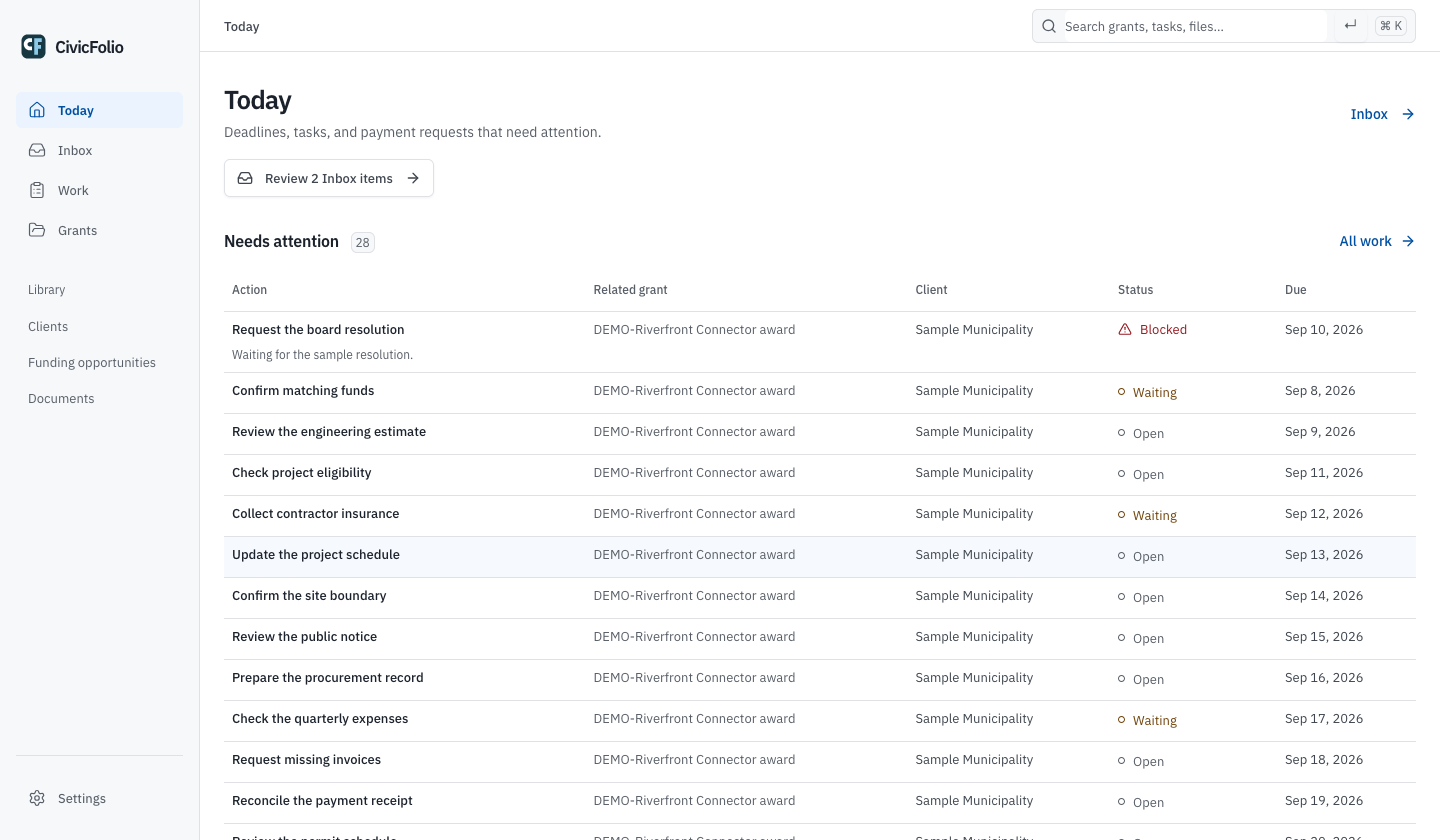
Know what needs your attention.
See upcoming deadlines, open tasks, and incoming files across your grants. Open any task to continue the work.
Follow each step with the details at hand.
- 01
Open the grant
Find the application or award by client, project, or grant name. See its deadlines and open tasks.
- 02
Review the source
Add the relevant message or source file to Inbox. Check its contents before linking it to the grant.
- 03
Review the files
Approve the version you intend to use. Keep it with the application or award and the requirement it satisfies.
- 04
Complete the task
Record the person responsible and the due date. If the task is blocked, say what is missing.
- 05
Keep the receipt and response
File in the agency portal, then record the receipt and response with the files you submitted.
Keep working in your existing accounts.
Review the file before using it in an application or payment request. CivicFolio records the version and your decision. After filing, add the portal receipt to the same grant.
When Google Workspace is connected, you choose the Gmail search and approve each Drive move or rename. Settings shows which connections are configured for your account.
Record what you requested, what the agency approved, and what was received. Accounting entries stay in your finance system.
How would this work for your organization?
Tell us about the grants you manage and the work you want to simplify.